How to Print Labels
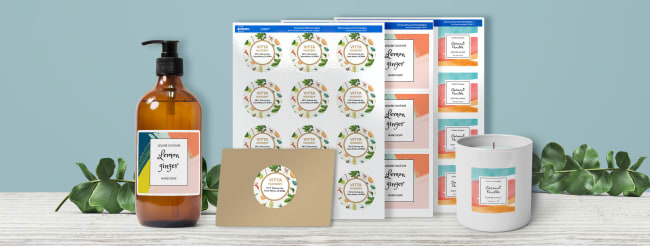
Wondering how to print high-quality labels from your desktop printer? Based on nearly a century of label manufacturing and printing, as well as questions we’ve received from our customers, we've put together a guide to help you design and print labels when you need them. Whether you order our online blank labels by the sheet or use our retail packs we have the best printable labels for you.
This comprehensive guide will walk you through label printing from start to finish, including how to select the right labels, how to design your labels, and how to prepare your printer settings and how to troubleshoot common printer issues. And when printing your own labels gets to be too much or you want a more professional look, check out Avery WePrint, our professional printing service.
1. Choose the right label for your printer
The first step in printing the best labels is to make sure that you buy the right labels for your project. One of the most common mistakes is purchasing labels that are incompatible with your printer.
Inkjet and laser printers work differently. Some Avery labels will work with both printer types but most Avery labels have been engineered to work with either laser or inkjet to optimize print quality. If you use laser labels in an inkjet printer, the printer ink will not absorb into the label properly which can cause smearing. Likewise, if inkjet labels are used in a laser printer, the toner will not adhere properly and will begin flaking.
An easy way to see what type of printer you have is to check your cartridges. Ink cartridges are used with inkjet printers and larger toner cartridges are used with laser printers. If you're not sure if your printer is laser or inkjet, we suggest going to your printer manufacturer's website or contacting the printer manufacturer directly for the most accurate information.
2. Choose the right label layout for your project
When choosing labels, knowing which label will work best for your design is important. Does your label design use a full-color background? Do you need to print a full-page design? Are you planning on using a 4" x 6" sheet? Make sure that you choose labels that will provide the best results for the design you have in mind.
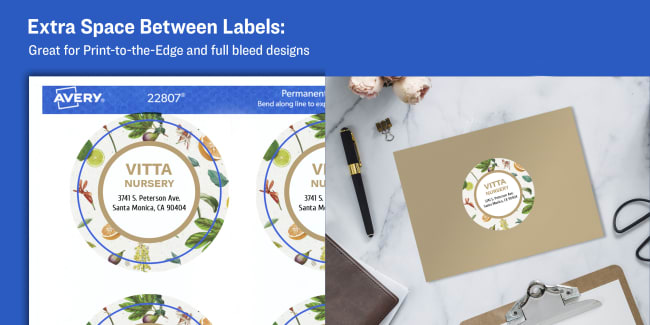
We used 2" print-to-the-edge round labels 94501 or 22807 to create these beautiful borderless labels.
Designs that fill the entire label are known as full-bleed and will need to print beyond the label border to achieve this look. This is why print-to-the-edge labels are perfect for projects that are focused around colorful and impactful designs.
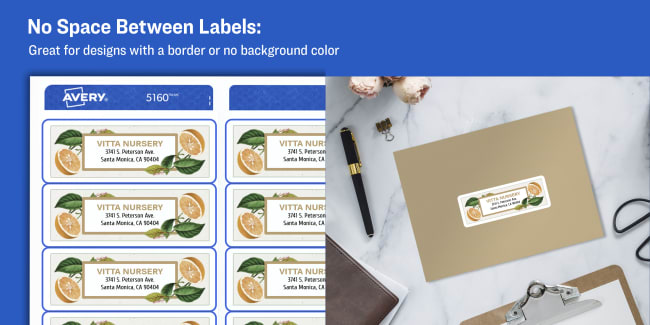
Labels without this extra space are better for designs that use borders or have no background color. This condensed layout also allows for more labels per sheet, making it a more cost-effective option for projects that are less design intensive. For example, address labels for mailing lists or file folder labels would work perfectly with this sheet design.
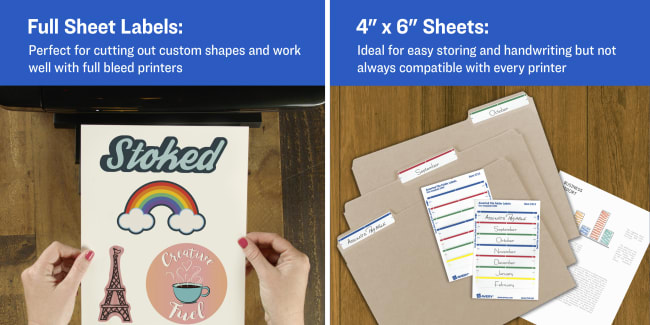
Print and cut out custom shapes with 8" x 11" full-sheet stickers 94268 or 3383. Quickly handwrite labels on the spot with file folder labels on 4" x 6" sheets (5215).
Having trouble finding the exact label size or shape that you need? Then a full 8-1/2" x 11" sheet label could be a perfect way to print out unique shapes that you can cut yourself with scissors or cutting machines. Full-sheet labels are also perfect for printing large, eye-catching labels for bins and signs.
However, with full-sheet labels, make sure that your design stays away from the edges of the sheet. Although some printers are capable of printing to the edge of the sheet, most printers will leave behind a blank margin around the sheet.
Smaller 4" x 6" sheets of labels are a convenient size for storing and transportation. If you're planning to print on a 4" x 6" label sheet, we recommend checking your printer options to confirm that it can print on 4" x 6" labels.
You can also use our handy guide on how to choose the correct label size to determine the exact shape and size that you need for your project. This will help you narrow down your options so that you can buy the right blank labels or have Avery WePrint professionally print your labels for you.
Once you have the right labels, keep them stored in the original packaging and in a cool, dry location, as humidity can cause your label sheets to curl. Having the original packaging is also helpful when you need to reference the product or template number, check the printer compatibility and to keep the labels in a container that is just the right size.
3. Use the matching Avery template
A common mistake leading to printing misalignments is using the wrong label template with the wrong product. Check the packaging or the sheet of Avery labels to find the 4-5 digit product or template number. You can then use that code to search our site for the exact label template that you need. If you need a little more help, read How to Find Templates on Avery.com.
You can also use our design software, Design & Print, which will automatically optimize to display the safety area, provide warnings when your design is incompatible and offer a variety of editing tools. Our software also allows you to choose from thousands of professionally designed templates that are already optimized for the best print experience.
4. Understanding the printable area of a label
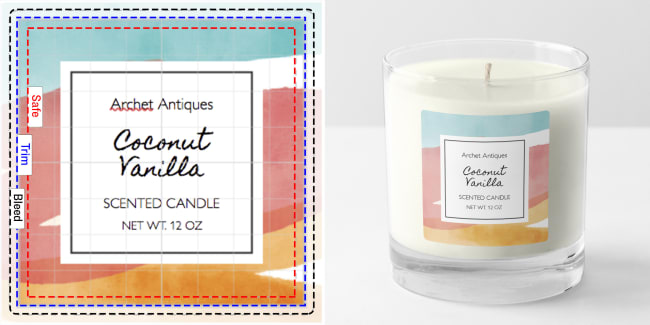
Before you begin the design process, it's important to realize how much of your label space is printable to prevent crucial parts of your design from getting clipped during printing. The printable area of a label will be divided into three sections:
Safety Area: The section that is guaranteed to print on the label. Keep all of your important content such as text and business logos within this area.
Trim: The physical border of the label. This border will give you a good approximation of where your design will be cut off.
Bleed or Print-to-the-Edge Area: The extra design space outside the trim line that full-color backgrounds, images and other content fills in order to have a print-to-the-edge or full bleed design. Filling in this area ensures that there will not be any blank margins around your final label.
5. Design best practices
Unfortunately, printers aren't perfect. It's common for sheets to shift slightly during the printing process and this misalignment is easier to spot when trying to print accurately on label sheets. However, you can optimize your design by using safe, trim and bleed areas to make any slight misalignments less noticeable. We also have a few tips you can keep in mind depending on the type of design you plan to print.
Make sure your text is legible
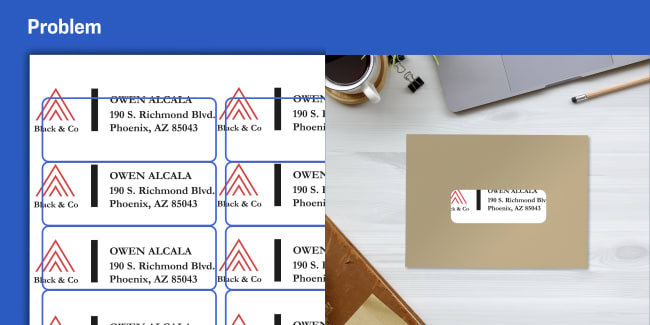
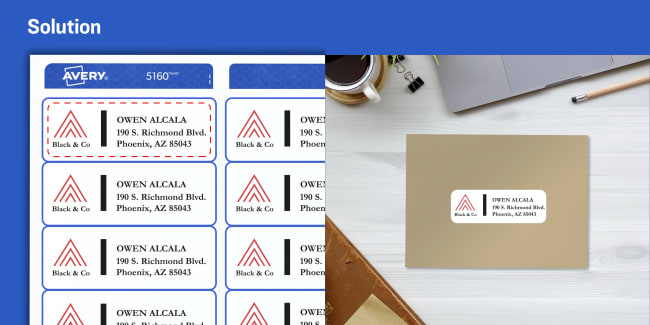
Use Avery address labels with Sure Feed ® technology 5160 or 94200 for a more reliable feed and improved print alignment.
Keep vital information like names and addresses within the safety area to reduce the chance of crucial details getting cut off. Design & Print Online makes this easy to do by showing a warning when your content is moving out of the printable area.
You should also make sure that your text will be legible when printed at actual size. Your font may seem readable when the entire label is filling your screen but it can look very different once printed. Try to use 7pt font or larger depending on the size of your label. Design & Print Online will also display a warning if your font size seems like it will be too small to read.
Also make sure that your font color will stand out and won't blend into the background. If you want to learn more, you can check out our article on choosing the right fonts for your labels.
Achieving a "full-bleed" or "print-to-the-edge" look
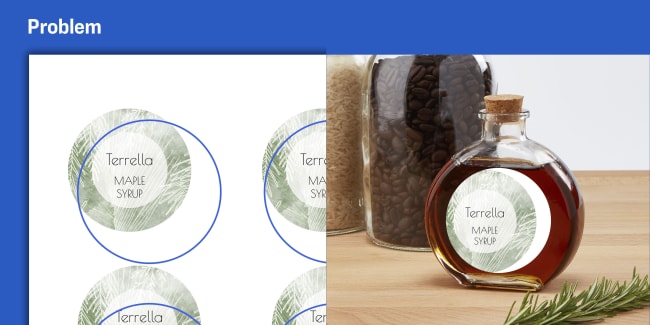
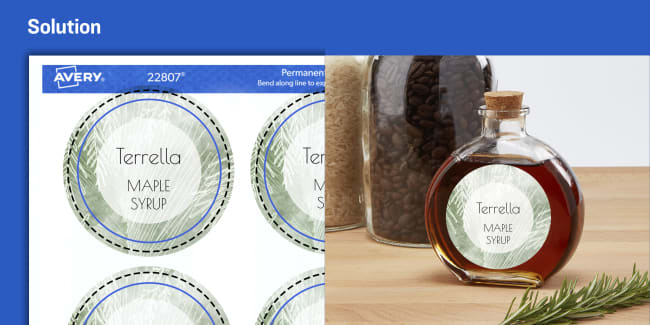
Not all labels are compatible with full-bleed designs so make sure that you are using the right template with print-to-the-edge labels. A quick way to check if you're using a print-to-the-edge template is to check if your design extends into the "bleed" or "print-to-the-edge" area beyond the label trim line.
Preventing overlapping designs
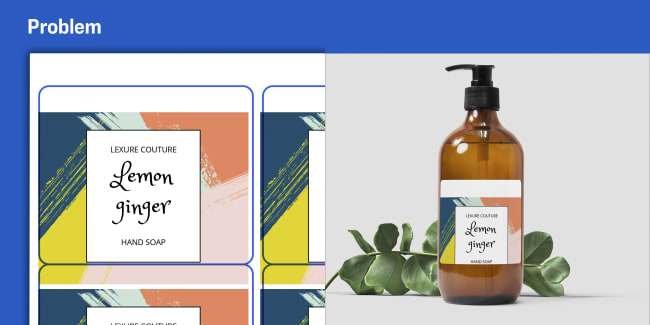
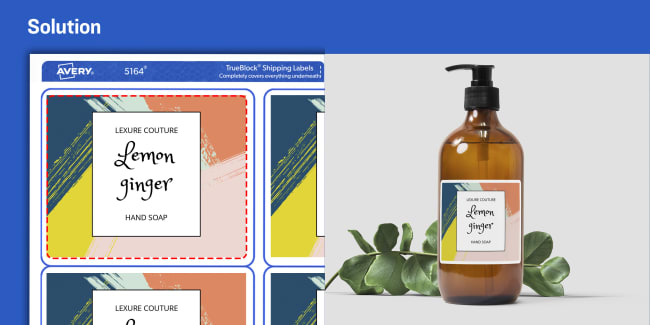
If the labels on your sheet do not have space between them, make sure that your design is comfortably within the safety area of your label. This will create a uniform border around your design and prevent your label design from printing on the other labels on your sheet. You can also use a blank background to make sure that your design won't cross over onto other labels.
Using full-sheet labels
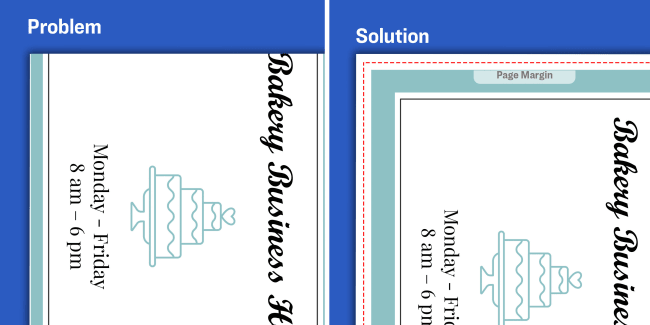
Most printers won't be able to print to the edge of an 8-1/2"x 11" sheet so it's important to know the non-printable margins of your printer before beginning. This area can vary depending on the printer model and manufacturer, but a .25" margin around your design is a good general rule. Design & Print Online will show a dotted line to help you visualize the page margin on the label template that go to the edge of the sheet. Test printing on a blank sheet of paper and check your printer options to confirm the printable area of your printer.
6. Preprint procedures
Before you print your labels, the three main printer settings to check are your paper size, paper type and the page scaling. However, this can be tricky since these settings can be named differently depending on your printer manufacturer. You can reference our article on recommended printer settings for more help with your printer options.
In printer settings, the "sheet size" or "paper size" control how your design is scaled to the label sheet. Make sure the size selected matches the size of the sheet of labels you are using. Otherwise, your labels will be misaligned. The most commonly used size is letter-size 8-1/2"x 11" paper. If you are using another sheet size, such as 4"x6", make sure to change the paper size setting.
The "paper type" or "media type" setting changes the speed at which the sheet is fed through your printer. Change this setting to the "Labels" option to slow down the speed and reduce the risk of misalignment. If your printer does not have an option for "Labels," you can select one of the options for "Cardstock," "Heavyweight" or "Premium" instead. In some printers, the "Labels" or "Cardstock" option will also mean that your sheet will need to be fed through another tray like the manual-feed tray. The manual-feed tray provides the best results since the sheet will be fed through flat. This avoids having the sheet bend and curl while traveling through printer rollers.
The page scaling setting should always be set to 100% or "Actual Size." Never use the "fit to the page" option, which will cause your design to shrink to the wrong size and result in misaligned labels.
Whether it's one or one thousand, order as many sheets of printable labels as you need online. No minimums and custom sizes available at no extra cost.
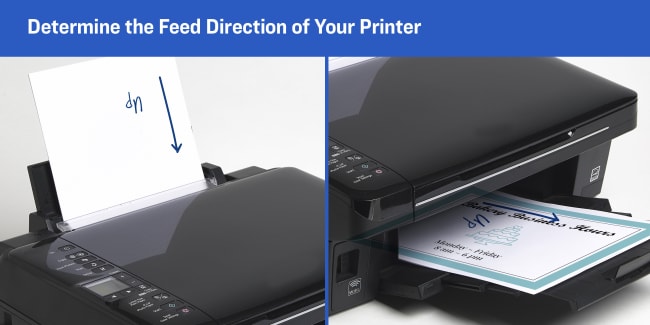
Once you have your printer options set correctly, run a test print on a blank sheet of paper to see how they come out. Mark your blank test sheet beforehand to show which side is up and which direction the sheet is being fed so that you can confirm exactly how to feed the label sheets.
Most labels will need to be fed with the right side facing up but double-check the recommended feed direction on the Avery label sheet.
7. Troubleshoot
Notice something wrong with your test print? Here are some fixes to common problems when trying to print labels.
Print misalignment
Q: Why is the print shifting in one direction?
A: Unfortunately, this can be caused by several factors and the exact cause can be difficult to trace. However, you can shift the print in the last step of Design & Print by choosing the option to adjust the print alignment. You can also adjust the margins if you are using a downloadable template.
Q: Why are my labels printing toward a corner?
A: This is most often caused by the print trying to "fit to the page" and not printing at the correct size. Double-check your page scaling settings to make sure that the print is set for "actual size" or to print at 100% scale.
Paper jam
Q: Why are my labels jamming?
A: Paper jams can occur due to different factors including sheets being fed incorrectly or damaged printer rollers. Make sure that the paper or media type in your printer is set to print on labels. If you're printing stacks, you can also try to print one at a time or make sure that the sheets are separated and not clinging to each other. You can also try Avery labels with Sure Feed technology that are designed to reduce printer jams.
Smearing or smudging
Q: Why is the print smearing?
A: The most common cause of ink smearing is because the labels are not compatible with the printer. Double-check that the labels you are using are compatible with your printer. Some labels are engineered for laser or inkjet-only printers.
Blank margin around the sheet
Q: Why is there a white margin around the label sheet?
A: Many printers are not able to print to the edges of the sheet and this can leave a margin around the page. You can check if your printer is able to print with a full bleed or use print-to-the-edge labels to work around this.
8. Print your labels
After making any final adjustments, print your labels
If you still need help, you can contact our consumer care center for assistance or browse our helpful knowledge base for more answers. Not sure if printing labels is for you? Have your labels custom printed by Avery WePrint our professional printing service.
Products used in this article:
2" Round Print-to-the-Edge Labels (22807 / 94501)
1" x 2-5/8" Address Labels for Laser Printers (5160 / 94200)
8-1/2" x 11" Sticker Paper ( 3383 / 94268)
1/3 Cut File Folder Labels on 4" x 6" Sheets (5215)
2" Square Print-to-the-Edge Labels ( 22816 / 94107)
1" x 2-5/8" Address Labels for Laser Printers ( 5160 / 94200)
3-1/3" x 4" Shipping Labels for Laser Printers ( 5164 / 94215)