Create Binder Tabs with Index Maker® Clear Label Dividers
It's easy to create custom, printed dividers in just minutes, with Avery Index Maker Dividers. Featuring our Easy Apply™ label strip, you can label all your divider tabs at once. Just print, stick and peel. These step-by-step instructions show you how easy it is to create custom dividers in a snap.
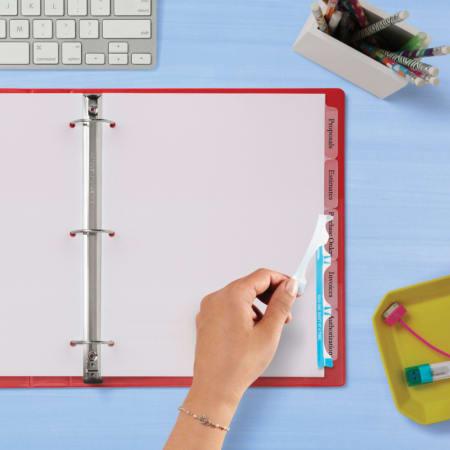
Step 1: Enter Product Number
Get started by entering your Index Maker® product number at Avery Design & Print Online. Click Go.
Step 2: Select Specific Product
Select your specific Index Maker product and Click Next.
Step 3: Choose a Design
Choose a pre-designed or blank template and click Next.
Step 4: Select Number of Divider Sets
Select the number of sets you will be creating from the drop-down menu and choose whether you want your sets collated or grouped when printed. Click Next.
Step 5: Add Text and Graphics
If you want different images on each tab, make sure and check the Different Image Each Tab bubble. Also check whether you want your logo on the right or left. Enter information and graphics for each tab. Click Create Dividers.
Step 6: Preview, Print and Save
Preview your template for errors, then print. Save your template to your MyAvery account or to your hard drive for future use.