Create a Color-Coded or Chronological Filing System
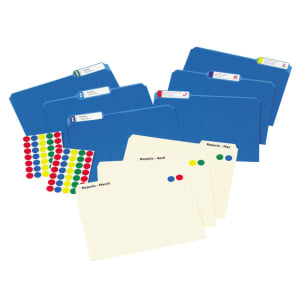
Customize and color code your filing system with color-coding labels. These labels make it fast and easy to file, store and recognize files. Labels are available in a variety of shapes and colors.
Step 1: Open Template for a Color-Coded System
To create a color-coded filing system, open the Assorted File Folder template.
Step 2: Enter File Information
Type in your file titles. Use the different colored labels to separate subjects.
Step 3: Open Template for a Chronological System
To create a chronological filing system, open the White File Folder template.
Step 4: Enter File Information
Type in your file titles.
Step 5: Print
Print on Avery Extra Large Filing Labels and apply to your file folders.
Step 6: Create Labels
Use templates found in your desktop software or Avery Design & Print Online to create clear filing labels.
Step 7: Print
Print on Avery Clear File Labels and apply to file folders. They labels disappear so the labels look like they are printed directly on the tabs.
Step 8: Use Labels
Add Avery Color Coding Labels to create a color-coding system that will indicate contents, urgency or activity at-a-glance.